
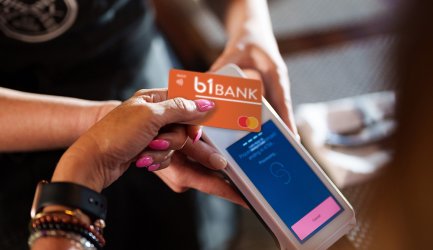
Swipe.

Save.

Impact.
Round Up for Good
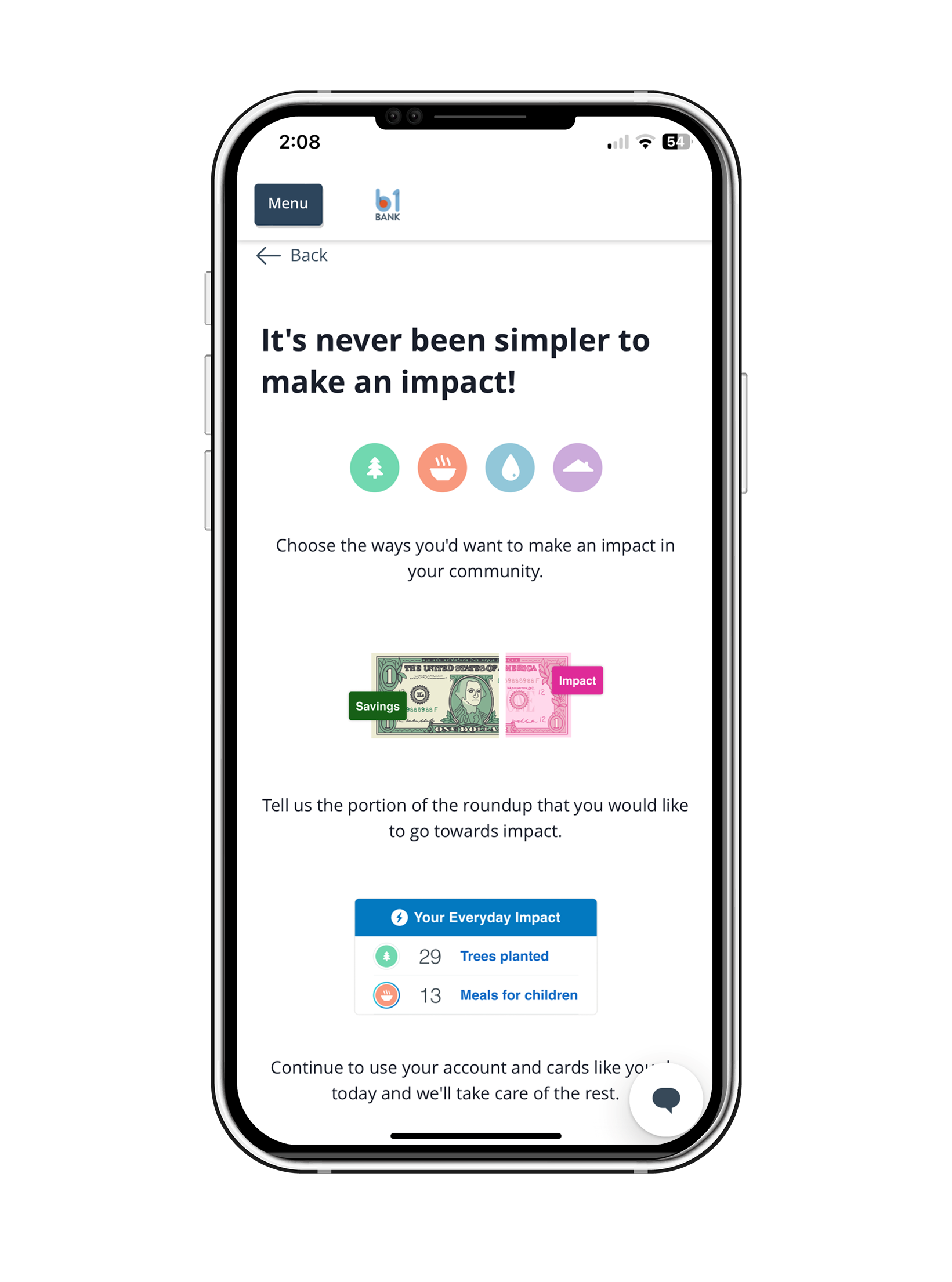
Round up your everyday purchases and have the spare change go directly into your savings account, towards a worthy cause – or both! The choice is yours and you can adjust at any time.
Small Change, Big Savings:
Watch your savings grow effortlessly. With each purchase, round up your debit card transactions to the nearest dollar and have the extra change automatically deposited into your savings account.
Small Change, Big Impact:
Make a positive impact. Choose to round up your debit card transactions and donate the spare change to causes you care about. From providing a meal to a veteran, helping a shelter animal or protecting our environment, you can lead positive change.
Sign in to your online banking or mobile app to start saving and giving today.
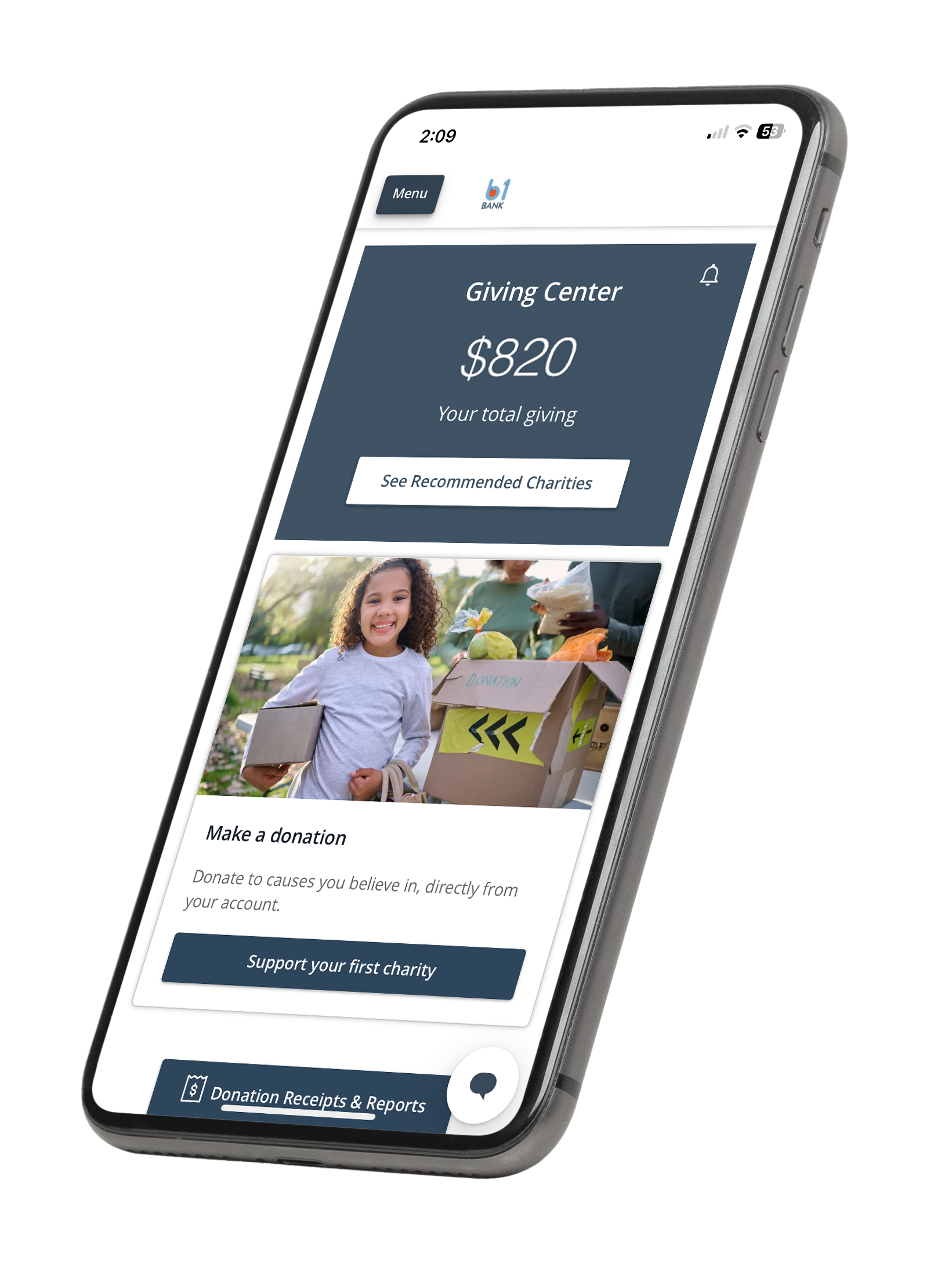
b1BANK Giving Center: Donations Made Easy:
Support causes you care about. Use our Community Giving Center to make one-time donations to a wide range of local, regional, and national charities, including the b1 Foundation and MORE.
Log in to online banking
- Navigate to the Giving Center from the left navigation menu
- Click “See Recommended Charities”
- Choose from the list of recommended nonprofits or use the search bar to find a nonprofit organization that supports a cause you care about
- Click "Give to this charity"
Frequently Asked Questions
-
Round Up for Savings FAQs
- What is Round Up for Savings?
Round Up for Savings automatically rounds up your debit or credit card purchases to the nearest dollar, transferring the difference to your savings account.
- How does Round Up for Savings work?
When you make a purchase, the amount is rounded up, and the difference is transferred to your savings account. If enrolled in Round Up for Good, the rounded-up amount can be split between savings and a nonprofit donation.
- How do I enroll in Round Up for Savings?
You can enroll through your online banking or mobile app. Choose to round up for savings, charitable giving, or both.
1.Go to the Round Up for Good Center.
2.Choose to enroll.
3.Select your source and destination accounts.
4.You are enrolled in Round Up for Savings!
- Can I round up for both savings and charity?
Yes, you can split your roundups between savings and charitable giving in 10% increments.
- Can I set a limit on how much I round up?
Limits can be set for Round Up for Good donations, but not for Round Up for Savings.
- What happens if I don’t have enough money to round up?
If you don’t have enough funds, the transfer won’t be completed. If you’re splitting between savings and charity, priority will be given to the savings account.
- Can my round up deposit go to a money market account?
Yes, your round up deposit can be directed to savings or money market account.
- What is Round Up for Savings?
-
Everyday Impact FAQs
- How does Round Up for Good work?
Round Up for Good lets you round up your debit card purchases to the nearest dollar, donating the difference to
a nonprofit. You can choose form a list of nonprofits in your online dashboard or mobile app. You can also choose
to split your round ups and have a portion go to savings as well!
- How do I enroll in Round Up for Good?
Enroll in Round Up for Good through your online banking dashboard or mobile app:
1. Go to the Round Up for Good Center.
2. Choose to enroll.
3. Select your source and destination accounts.
4. You are enrolled in Round Up for Good!
5. You can then decide to add impact and split your round ups.
6. Add impact by choosing a nonprofit.
7. Set a weekly or monthly donation limit.
8. Choose if you want to share your information with the nonprofit.
9. Enrollment is complete!
- How do I unenroll from Round Up for Good?
You can turn off roundups anytime:
1. Log in to your digital banking platform.
2. Go to the Round Up for Good dashboard.
3. Go to settings and select “Turn off roundups.”
4. Confirm your choice.
- Do I receive a receipt for Round Up for Good donations?
Yes, receipts are provided monthly and can be viewed in the online banking dashboard or mobile app.
- Can I change the nonprofit I’m donating to?
Yes, you can change your designated nonprofit at any time.
- Why are there a limited number of nonprofits options?
We carefully selected these nonprofits based on their evidence based results and high quality reputations.
However, one-time donations can be made to any one of the many charities listed in the Giving Center.
- How does Round Up for Good work?
-
Giving Center FAQs
- How do I enroll in the Giving Center?
There is no enrollment necessary. The Giving Center is available to all clients inside your online banking
dashboard or mobile app.
- How do I make a donation?
Making a donation is easy! You can donate to over 1.5 million registered charities in the U.S. Here’s how:
1. Log in to your digital banking platform.
2. Navigate to the Giving Center.
3. Click “See Recommended Charities” or use the search bar to find a nonprofit.
4. Choose an account (e.g., Checking, Savings) to donate from.
5. Enter the amount you’d like to donate (minimum $5).
6. Decide if you want a one-time or monthly donation.
7. Choose to share your information with the nonprofit or remain anonymous.
8. Review your donation and any applicable fees.
9. Click “Give my donation.”
Note: Donations cannot be returned once submitted.
- How do I set up a monthly recurring donation?
Follow the same steps as making a one-time donation, but select the option for a monthly donation. Monthly
donations will be processed on the same date each month.
- How do I search for a new charity?
To find a new charity:
1. Log in to your digital banking platform.
2. Go to the Giving Center.
3. Click “Search Recommended Charities.”
4. Use the search bar or browse highlighted categories.
5. Select your charity and finalize your donation.
- What if I can’t find the charity I’m looking for?
Only IRS-recognized tax-exempt charities are listed in the Giving Center.
- How can I manage my recurring donations?
You can easily manage your recurring donations in the Giving Center:
1. Log in to your digital banking platform.
2. Go to the Giving Center dashboard.
3. Click “Manage your support” for the charity you want to adjust.
4. You can change the donation amount, pause, or stop the donation.
5. Click “Finish” to save your changes.
- Where can I find my donation receipts?
Receipts are available immediately after you make a donation. You can download them as a PDF from the Giving
Center dashboard under “Donation Receipts & Reports.”
- When does the nonprofit receive my donation?
It may take up to 45 days for the nonprofit to receive your donation.
- How is my information shared with nonprofits?
You can choose to share your information or donate anonymously during the donation process. If you donate
anonymously, your information won’t be shared.
- Why is there a fee to make a donation?
Processing fees cover the costs of securely transferring your donation. These fees are lower than the industry
standard, typically ranging from 3% to 8%.
- How do I enroll in the Giving Center?
